Example Extension Installation Using JupyterLab-NVDashboard and Ollama
This section will provide a step-by-step example for installing the extension, jupyterlab-nvdashboard. Please save your work and shut down your notebook server before following the example.
Installing the Extension
1) Start a new notebook server with the following server options.
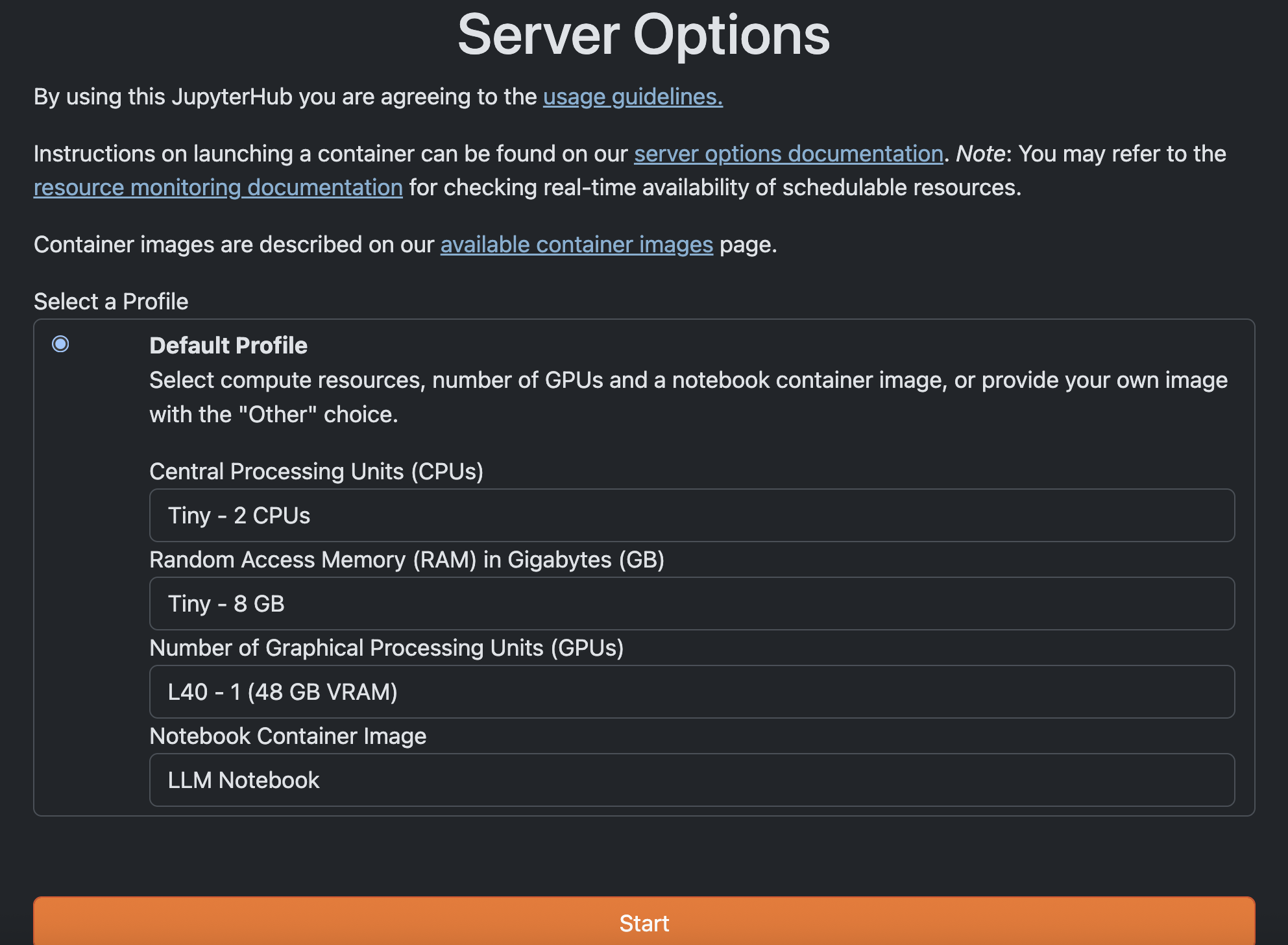
2) Open a new terminal and use the command below to install the jupyterlab-nvdashboard extension:
pip install --user jupyterlab-nvdashboard
3) Once you have restarted the notebook or refreshed the window, you should see the extension installed on the left sidebar. Click refresh on the “Installed” dropdown menu to see jupyterlab-nvdashboard there as well.
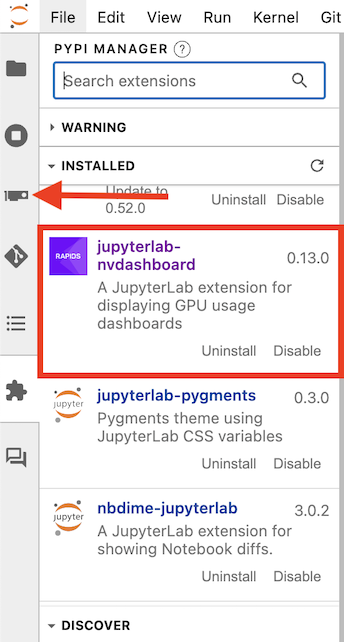
Use the find command from before to see that it’s installed in your home directory
find ~ -name "jupyterlab-nvdashboard"
Testing Extension using Ollama
1) Click the “+” button at the top to open another tab, then open a new terminal.
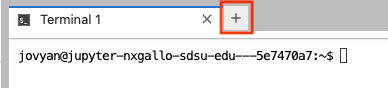
2) Run the command:
ollama serve
- This will start the Ollama process so it can run AI/LLM models within this notebook. Let it run in that terminal.
3) In a new tab, open another terminal and use the following command to pull the llama3 model:
ollama pull llama3
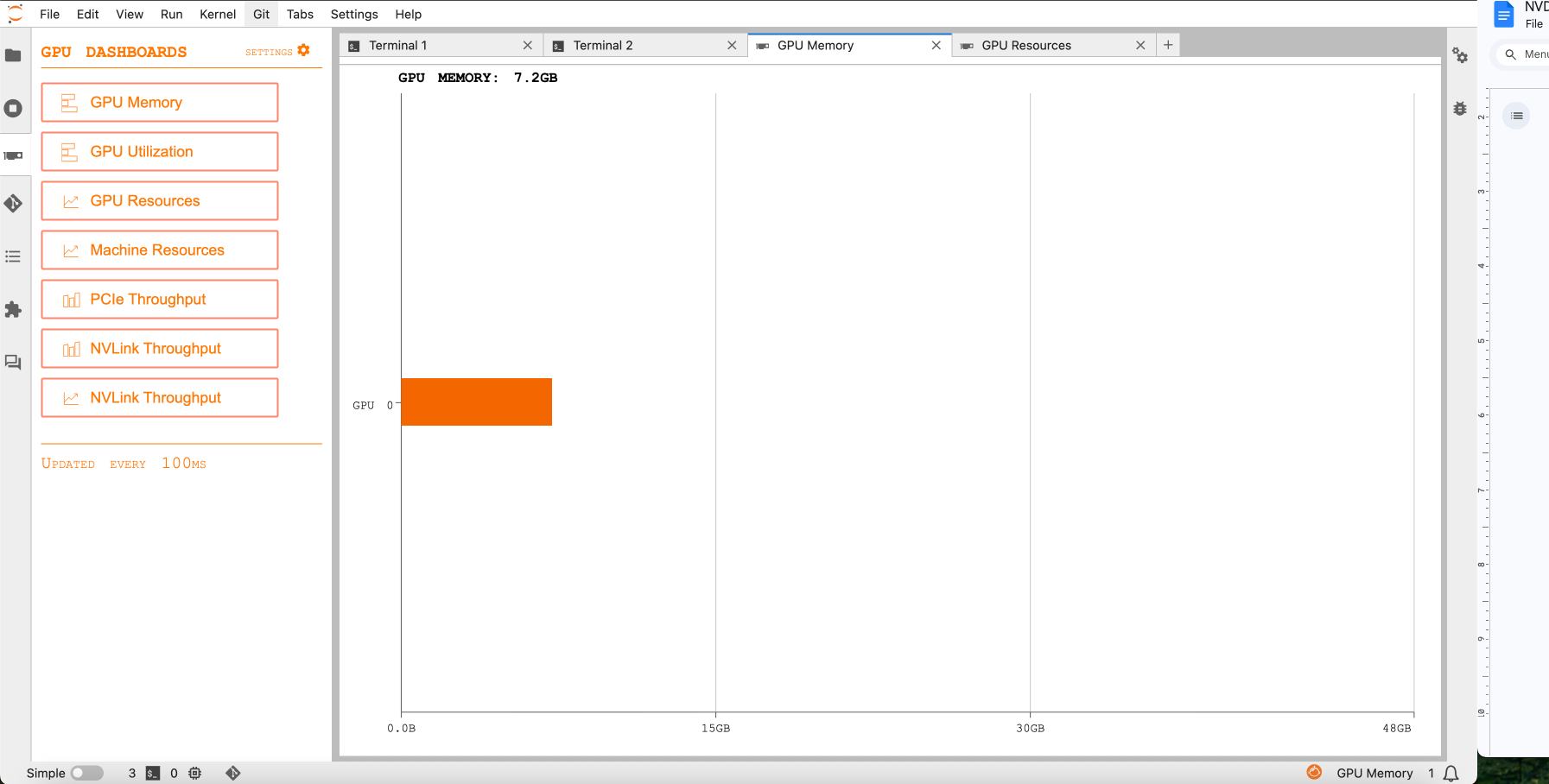
4) On the left sidebar, click the extension we just installed labeled GPU Dashboards. Select the option GPU Memory and make a note of the memory that has been used so far.
5) Now, use the command
ollama run llama3
This command may take some time to run. Once the command finishes, you should be able to write some prompts for the llama3 model.
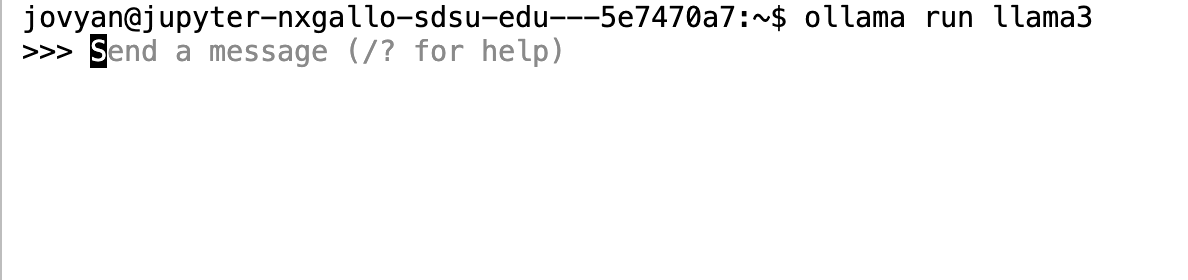
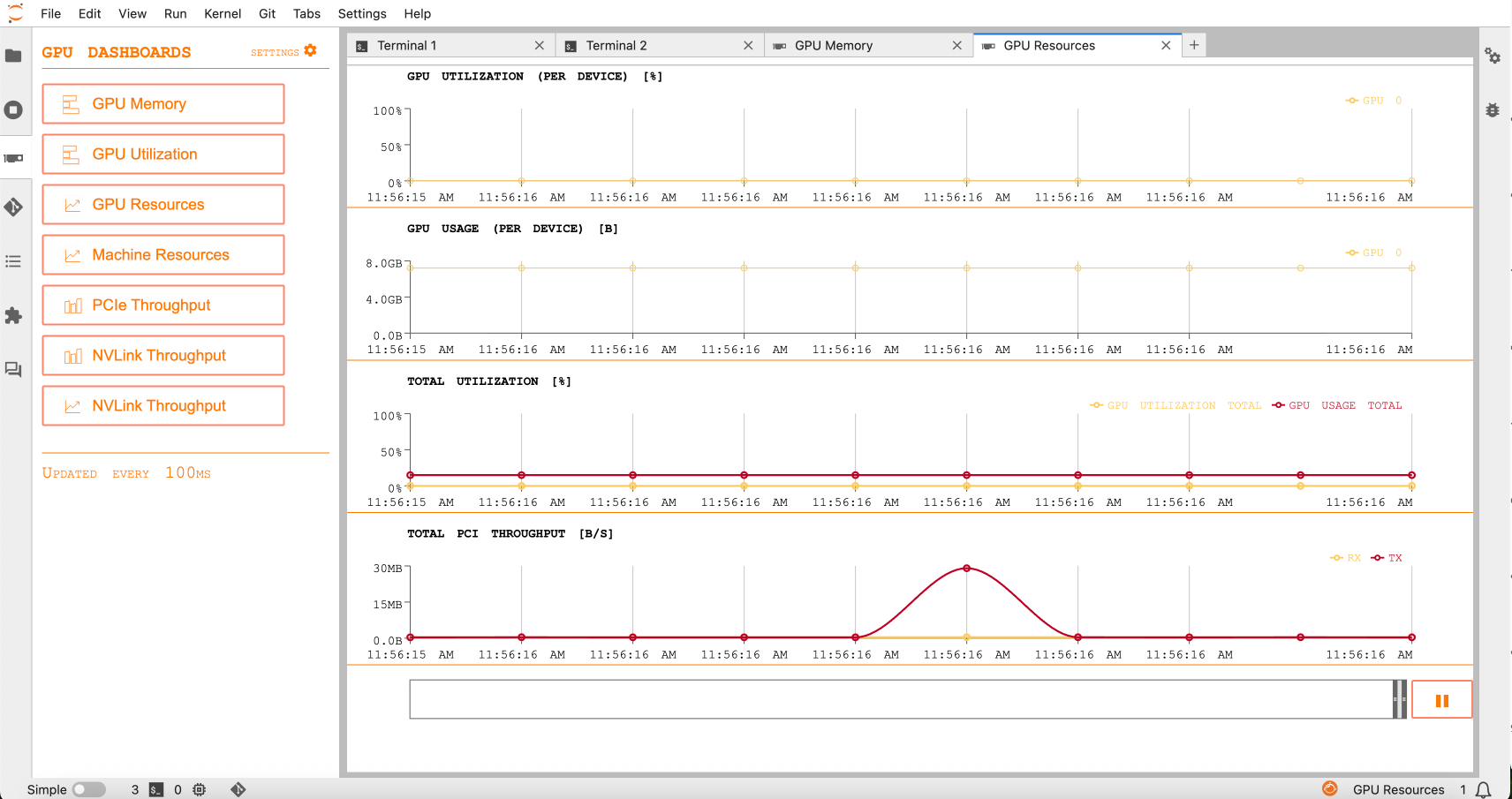
When you get some responses back from the model, check the GPU Memory Tab again to see the increase in memory usage. You can also click on the GPU Resources option to see how it’s being used overtime.
Cleaning Up
1) After you’re done talking with the model, enter /bye.
2) Use the following commands in order to remove the llama3 model that we pulled and stop the Ollama process.
ollama stop llama3 && ollama rm llama3
and
pkill ollama
3) If you want to remove the extension as well, use the command below:
pip uninstall jupyterlab-nvdashboard -y
For any specific software questions related to an extension, please refer to the extension’s official documentation.